FREE TRIAL
Tutorial

Nuvio IPTV Installation Guide

Get Nuvio running on your Android TV or Google TV in 4 simple steps, from creating your account to adding your IPTV login. Follow the steps in order.

Before you start

Have these ready to make the setup quick and smooth.

  1. Step 1

    Create a Nuvio Account

    On your phone or computer
    1. Visit the official Nuvio website: nuvioapp.space
    2. Click Log In, or Create Account if you're a new user.
    3. Enter your email address and password.
    4. After signing in, you'll have access to the Nuvio Dashboard, where you can manage your profiles, addons, and settings.

    Tip: Keep your email and password handy. You'll need them again to sign in during Step 3.
  2. Step 2

    Install Nuvio on Android TV or Google TV

    On your TV
    1. Open the Google Play Store on your TV and install the Downloader by AFTVnews app.
    2. Turn on Install unknown apps (or Unknown sources) for Downloader in your device settings.
      Can't find this setting?

      Android TV

      Settings› Device Preferences› Security & restrictions› Unknown sources

      Then turn on Downloader.

      Google TV

      Settings› Apps› Security & restrictions› Unknown sources

      Then turn on Downloader. Don't see this option? Turn on Developer options first: go to Settings › System › About and select Android TV OS build 7 times.

      Menu names may differ slightly depending on your TV brand.

    3. Open Downloader, enter the code below, and select Go.
      Downloader codeNuvio app 6532491
    4. Wait for the download to finish, then select Install. Once the installation is complete, select Open to launch the app.

    Tip: After installing, Downloader may ask whether to delete the installation file. You can select Delete to free up space. The app stays installed.

  3. Step 3

    Sync Your Account

    On your TV + phone
    1. Open the Nuvio app on your TV.
    2. Scan the QR code displayed on the screen with your phone.
    3. Sign in with your Nuvio account (the one you created in Step 1).
    4. Select your profile.
    5. If prompted, install any available app updates.
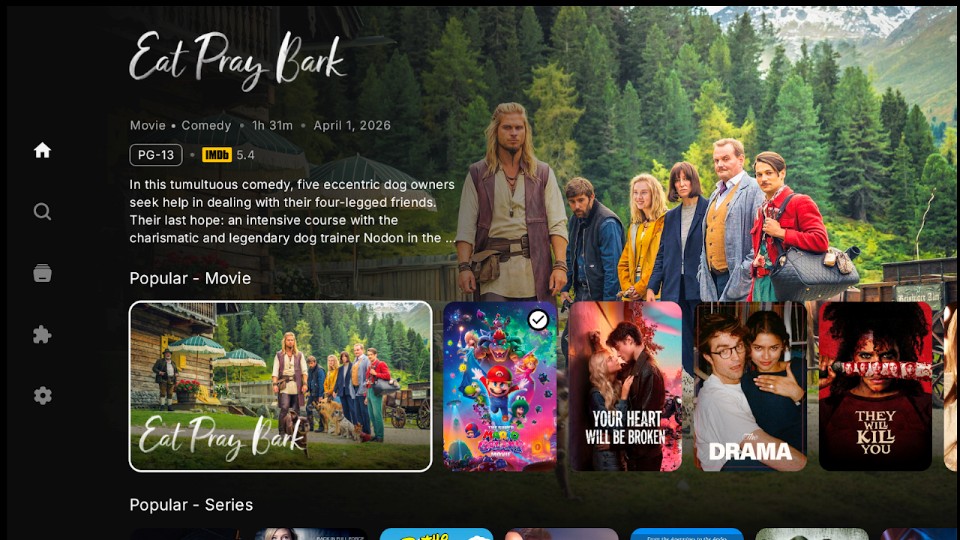
    Nuvio home screen with popular movies and series
    The Nuvio home screen you'll see once you're signed in.
  4. Step 4

    Set Up IPTV

    On your TV
    1. Select Live TV.
    2. Select Add Xtream Codes Login.
    3. Enter your Name, Server (URL), Username, and Password. See the guide below.
    4. Select Save.
    Add Xtream Codes Login What to enter
    Namee.g. Nuvio IPTV
    Your choiceAny name you like for this connection.
    Server (URL)Your server URL
    From usThe server address in the login details we send you.
    UsernameYour username
    From usYour IPTV username.
    Password••••••••
    From usYour IPTV password.
    Save

    Type your login details exactly as we sent them, as they are case-sensitive. Don't have them yet? Contact us on WhatsApp.

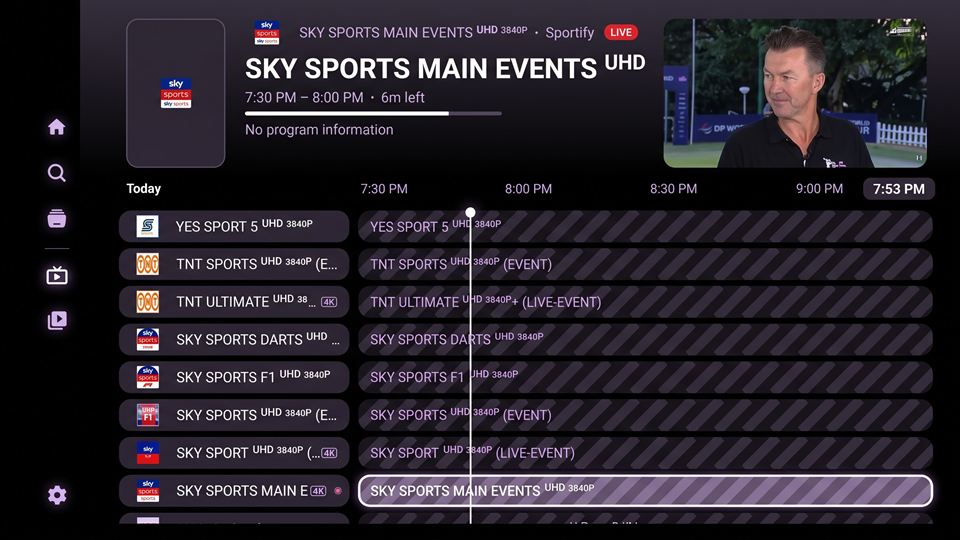
    Nuvio Live TV guide listing 4K sports channels
    Once your login is saved, your channels appear under Live TV.
  5. Additional Recommended

    Install a VPN

    On your TV

    We recommend installing a VPN as well. Here's how:

    1. Open the Downloader app and enter the code below.
      Downloader codeVPN app 46836
    2. Wait for the installation to complete, then open the app.
    3. If a Blocked by Play Protect pop-up appears, you need to turn off Google Play Protect first (see below), then install the app again.
    4. How to turn off Google Play Protect:

      Android TV

      1. Open the Google Play Store.
      2. Select your profile icon in the top-right corner.
      3. Select Play Protect.
      4. Turn Play Protect off.
      5. Confirm by selecting Turn off.

      Google TV

      1. Open Settings.
      2. Go to Privacy › Security.
      3. Find Scan apps with Play Protect.
      4. Turn the toggle off.
    5. Contact us to get your VPN login details. Request VPN login
  6. Done! You're all set

    Your Nuvio account, addons, watch history, and settings sync automatically across all devices connected to the same account, so you can start streaming right away.

    • Account One login for all your devices
    • Addons Set up once, ready everywhere
    • Watch history Pick up where you left off
    • Settings Your preferences follow you
Stuck on a step? Message us on WhatsApp and we'll help you finish the setup. Operating hours: 07:00AM – 10:00PM.
×